
Blog
Different Ways to Play Mobile Games on Computers


Even though mobile games are primarily designed for smartphones and tablets, playing them on a computer has become increasingly popular. Some gamers want a larger screen for story-driven RPGs, strategy titles, or visual novels. Others prefer the precision of a mouse and keyboard, higher frame rates, or want to save their phone’s battery and storage space. As a result, several official and unofficial methods now exist to bring Android and iOS games to laptops and desktops, each with its own strengths and limitations.
Official, Supported Options
Official solutions are generally the safest and most stable way to play mobile games on a computer. They are backed by platform owners or developers, which means better compatibility, fewer crashes, and minimal risk to your account, especially important for games where precision and responsiveness matter, such as competitive titles or blackjack tables that rely on accurate inputs and smooth animations.
These options typically integrate directly with existing ecosystems, allowing players to keep their accounts, purchases, and cloud saves intact. Because they are designed with desktop use in mind, they also tend to offer better scaling on larger screens, improved performance settings, and more reliable mouse and keyboard controls compared to unofficial workarounds.
Google Play Games on PC (Windows)
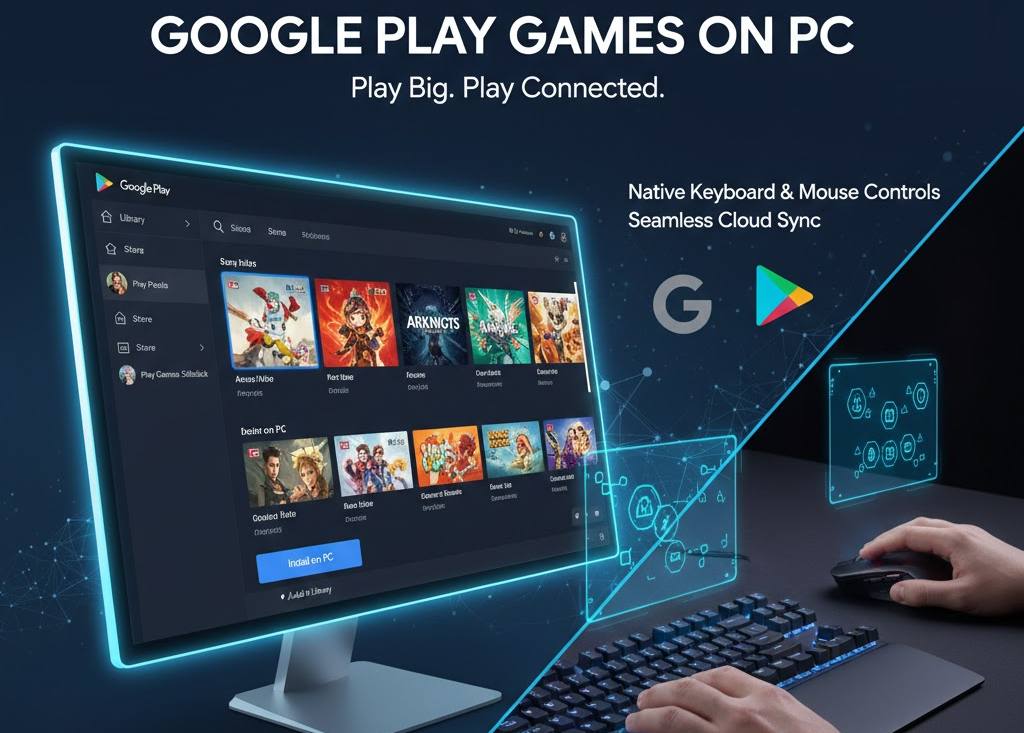
Google Play Games on PC is currently the most straightforward way to play Android games on a Windows computer. It allows you to download and run a growing catalog of Android titles directly from Google’s ecosystem, without needing a third-party emulator.
Key advantages include:
- Native keyboard and mouse support for supported games
- Cloud saves and synced purchases are tied to your Google account
- Adjustable graphics and performance settings designed for PC hardware
Because this platform is still expanding, not all Android games are available yet. Before installing, it’s important to check Google’s minimum system requirements and supported game list to ensure smooth performance and avoid installation issues.
iPhone and iPad Games on macOS (Apple Silicon)
Apple offers a unique advantage for Mac users with Apple silicon (M1, M2, and newer chips). Developers can choose to make their iPhone and iPad apps available on macOS through the Mac App Store. When supported, these games are labeled “Designed for iPhone” or “Designed for iPad.”
Unlike emulation, these apps run almost natively:
- No virtual device window
- Better input responsiveness
- Fewer compatibility problems
However, availability depends entirely on the developer. Some studios disable Mac support due to control limitations or design choices, so not every iOS game will appear in the App Store.
Browser-Based and Desktop Websites
Some mobile games, particularly casino, card, and social games, offer full-featured desktop websites. These are often overlooked but can provide a smoother and more precise experience on computers.
For example, casino platforms like Spin Casino provide official web versions of their games, allowing players to enjoy higher-resolution graphics, better performance, and more accurate mouse-based controls, especially for games like blackjack or roulette. Since these versions are officially supported, they avoid the technical issues commonly associated with emulators.
Emulators and Mirroring Tools
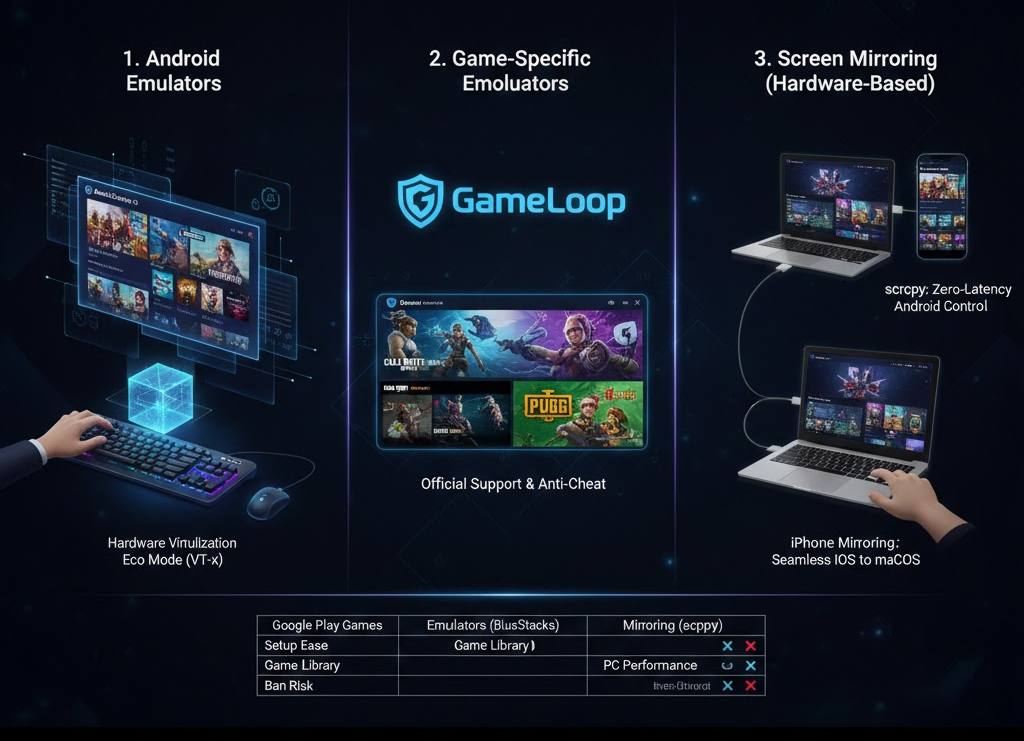
When official solutions are unavailable, emulators and screen-mirroring tools offer flexible alternatives. These methods come with more setup steps and potential compatibility concerns, but they allow access to a broader range of games.
Android Emulators
Android emulators simulate a virtual Android device on your computer. Popular options include BlueStacks and NoxPlayer, both of which allow you to install games from Google Play or sideload APK files.
BlueStacks is often considered the most gamer-friendly option due to:
- Advanced control mapping (keyboard, mouse, controller)
- Multi-instance support for farming or managing multiple accounts
- Performance presets for different PC configurations
To get the best experience, users should:
- Enable hardware virtualization in the BIOS.
- Allocate sufficient RAM and CPU cores.
- Update graphics drivers regularly.
Game-Specific Emulators
Some competitive or multiplayer games actively restrict emulator use due to fairness and anti-cheat concerns. In these cases, a game-specific emulator may be safer.
Tencent’s GameLoop is a notable example. It serves as the official emulator for games like Call of Duty: Mobile and specific PUBG-related titles. Because it’s officially supported, GameLoop reduces the risk of mismatched matchmaking, unfair advantages, or account penalties.
Screen Mirroring and Remote Control
If you want to avoid emulation altogether, mirroring tools allow you to play games on your phone while controlling them from your computer.
- scrcpy (Android):
- This lightweight, open-source tool mirrors your Android device to your PC or Mac over USB or Wi-Fi. It requires no root access and no app installation on the phone. You can control games using your keyboard and mouse, making it ideal for titles that behave unpredictably on emulators.
- iPhone Mirroring (macOS):
- Apple’s iPhone Mirroring feature lets you view and control your iPhone directly from your Mac. The phone remains locked and nearby while you interact with it using your keyboard, mouse, or trackpad. This approach preserves full compatibility since the game is still running on the actual device.
Best Practices and Final Considerations
Regardless of the method you choose, a few best practices can save you time and frustration:
- Download emulators and tools only from official websites.
- Enable hardware virtualization when using emulators.
- Start with lower graphics settings before increasing FPS or resolution.
- Back up your game saves regularly.
- Test new setups using a spare or secondary account.
Finally, always check a game’s terms of service. Some publishers treat emulator users differently from mobile players, particularly in ranked or competitive modes, and violations can result in restrictions or bans.
By weighing convenience, performance, and compatibility, you can choose the method that best fits your gaming style, whether that means official PC support, emulation flexibility, or simple device mirroring for complete authenticity.
Disclaimer
This article is for informational purposes only. References to specific platforms, tools, or game types, including casino games and blackjack tables, are not endorsements or recommendations. Availability, features, and compatibility may vary by region, device, or developer. Always review a game’s terms of service and local regulations before playing, and use official sources when downloading software. The author is not responsible for any account restrictions, data loss, or legal issues that may result from the use of emulators, mirroring tools, or third-party applications.