
Blog
How to Recover Photos from a Broken Android Phone?

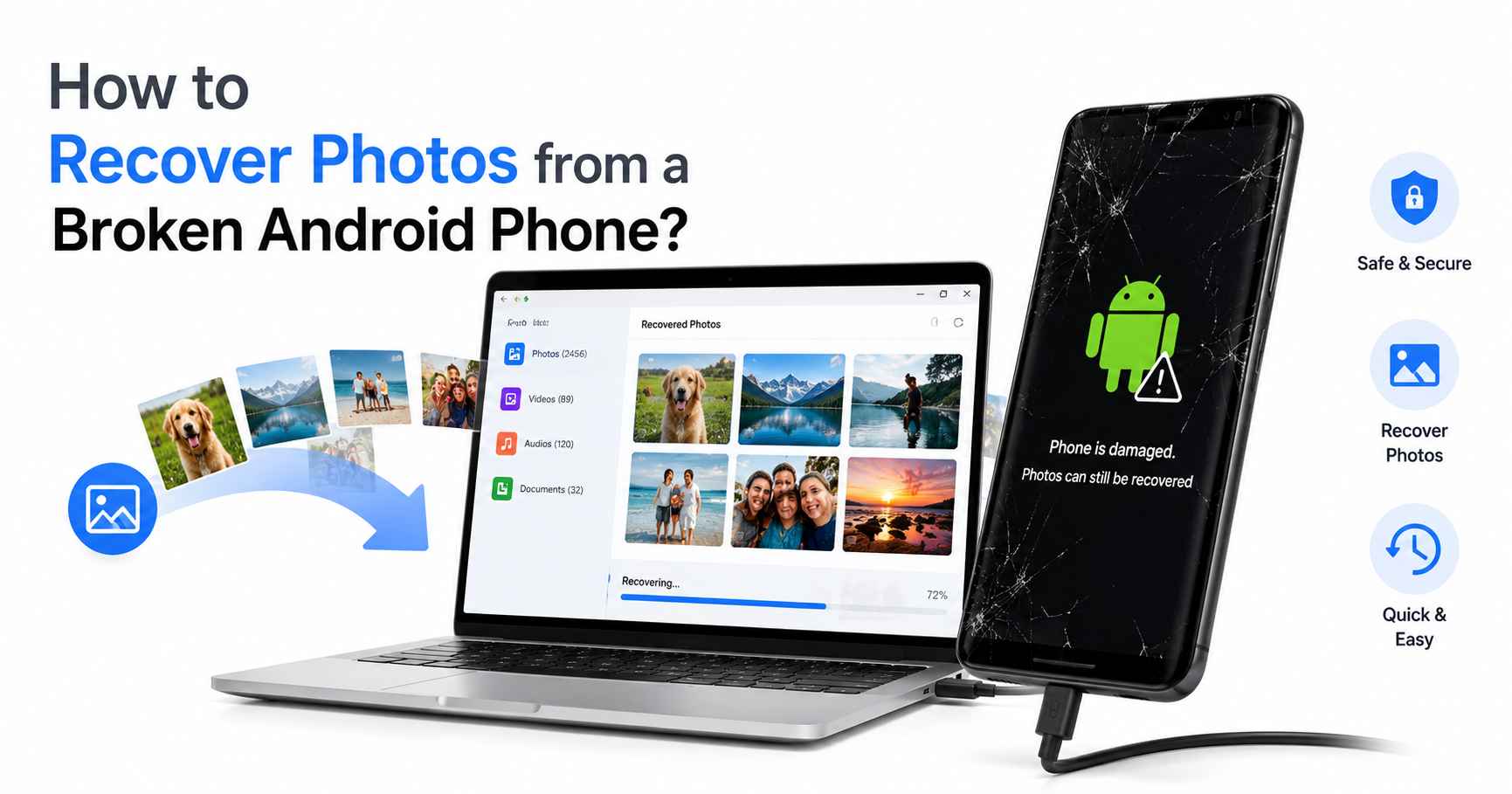
Losing access to important photos on your Android phone is extremely painful, especially when those images contain precious or once-in-a-lifetime moments. Whether your Android phone has a cracked screen, water damage, a system crash, or refuses to turn on, there’s always a chance to restore your lost photos. In many situations, your photos aren’t actually deleted; they remain on your phone’s internal memory and can be easily restored.
With the right recovery methods, you can often recover your images without resorting to advanced technical workarounds. In this guide, we’ll cover different methods for recovering photos from broken Android phone. Let’s get started!
Understanding Why Android Phones Become Unusable
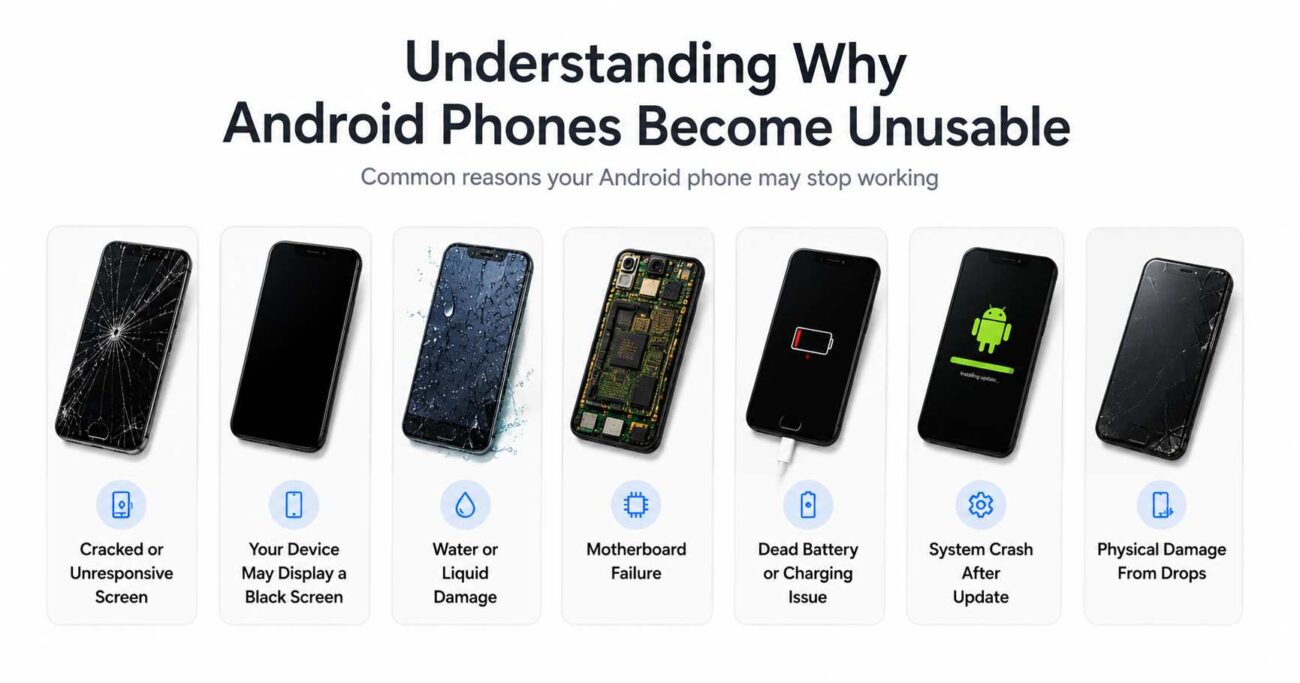
Before you proceed with any method to restore your photos deleted from a broken Android phone, it’s important to understand the possible causes of phone failure. Common issues include:
- Cracked or unresponsive screen
- Your device may display a black screen
- Water or liquid damage
- Motherboard failure
- Dead battery or charging issue
- System crash after update
- Physical damage from drops
The recovery method somehow depends on the condition of the device.
Is it Possible to Recover Photos Deleted from a Broken Android Phone?
Yes, in many cases, photos deleted from your Android phone are easily recoverable. If the phone’s storage chip is still intact, your photos may still exist inside the device memory or synced cloud account. Recovery chances also somehow depend on the following factors:
- If your phone is powered ON
- USB debugging was enabled
- Photos were backed up to cloud storage
- SD card storage was used
- Internal storage is readable
However, recovery may become difficult if the storage hardware itself is severely damaged.
How do I Recover Photos From Broken Android Phones? [Quick Methods]
Irrespective of these reasons for your broken Android phone, photo recovery is often possible in certain scenarios. Just go with the methods below one by one to get your deleted photos back:
Method 01: Recover Photos Using Google Photos Backup
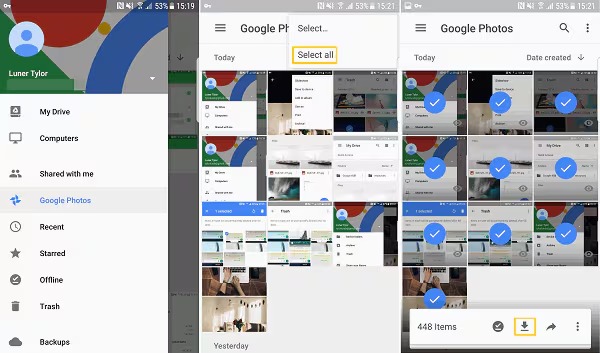
If you’re good at maintaining regular backups of your Android phone, data recovery is quite easy. You can use cloud backups, such as Google Photos, to create a backup of the photos on your device. Most Android phones enable photo syncing by default when connected to a stable internet connection.
Steps to recover photos from a broken Android phone using Google Photos:
- Firstly, open a web browser on your computer and visit the Google Photos official website.
- Sign in with the same Google account linked to your broken phone.
- Browse through the backed-up photos and choose the ones you want to restore.
- Download the selected photos back to your computer.
Note: Only photos that were synced before the phone broke will be available.
Method 02: Recover Photos Using SD Cards
Many Android users store photos directly on an SD card. If your broken Android device has the SD card connected, recovery becomes very simple. Follow the steps below to restore your deleted photos from the SD card:
- Remove the SD card from your Android phone.
- Insert it into a reliable card reader and then connect it to your PC.
- Open the SD card folder and browse through stored files.
- Locate the photo(s) you want to restore to a safe location.
Method 03: Use Android Data Recovery Software
If the deleted photos are inaccessible using the aforementioned free data recovery methods, you can use Android data recovery software to get them back. Tools like Stellar Data Recovery for Android perform a thorough scanning of your Android phone to find recoverable files. This software can help you restore deleted files of various types, including photos, videos, documents, etc. It supports recovery from various Android brands and storage scenarios, making it a practical solution for users dealing with broken devices.
The Stellar Data Recovery for Android is a versatile tool, mainly known for its simple and user-friendly interface, which you can use to restore deleted files in a few simple clicks. The software supports data recovery in three simple steps, i.e., Select, Scan, and Recover. The software supports popular Android manufacturers like Samsung, OnePlus, Xiaomi, Vivo, Oppo, Motorola, and more.
Here’s how to recover photos from a broken Android phone using this software:
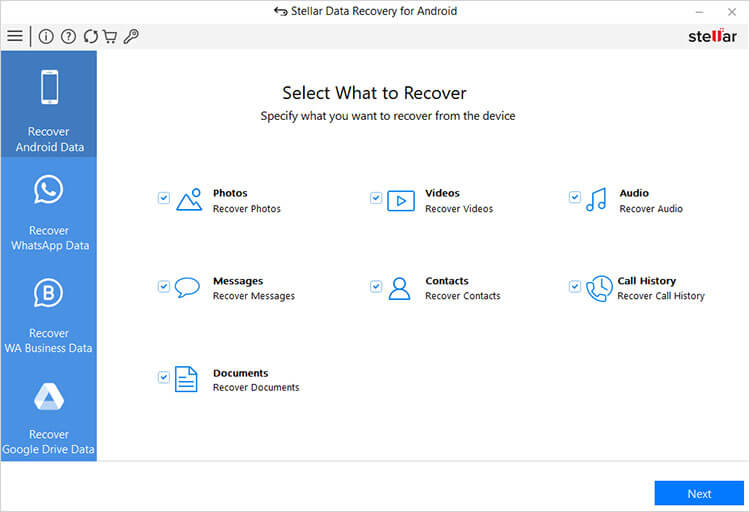
Step 1: Visit the official Stellar website to download and install the Stellar Data Recovery for Android software on your Windows computer. Also, connect your Android phone to that PC.
Step 2: Launch the software and from the homepage, select Photos (or the type of data you need to restore) and click Next to continue.
Step 3: Click Scan to initiate the scanning process and wait till it is completed. Depending on storage size and damage condition, the scan may take several minutes.
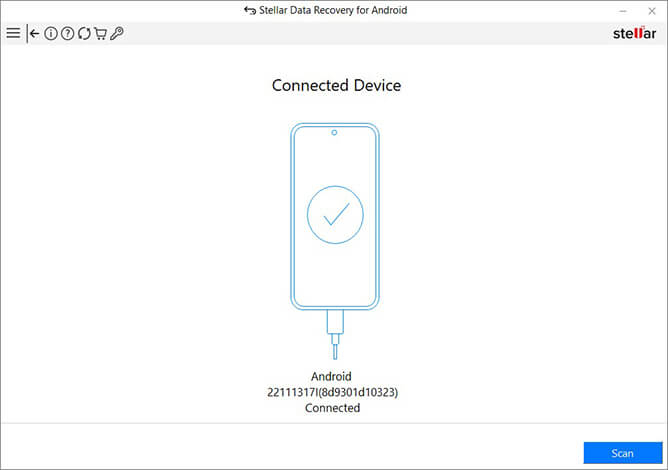
Step 4: Once the scan completes, the software displays recoverable images in a preview window. Select the files you want and click Save to save them back to your device.
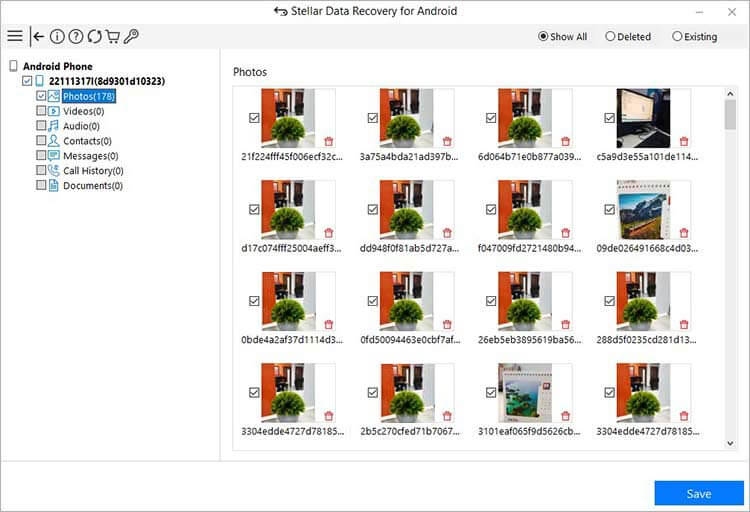
Note: Save the recovered images to a safe location on your computer instead of saving them back to the damaged phone.
What If the Phone Is Completely Dead?
If the phone is severely damaged or does not power on at all, Android data recovery software may not deliver the expected results. In such situations, your computer may fail to detect or communicate with the device, and you can consider trying the following solutions:
- Battery replacement
- Temporary hardware repair
- Professional recovery service
If the internal storage chip remains undamaged, recovery specialists may still retrieve your photos.
Conclusion
Recovering photos from a broken Android phone is often possible, even when the device appears completely unusable. Start with the simplest methods first, such as checking Google Photos or connecting the device to a computer. If you don’t have any backup, specialised Android data recovery software or professional recovery services may still recover your data successfully. Most importantly, once your photos are recovered, maintain regular backups to avoid future data loss situations.